
Saved tasks
Turn commands you use regularly into tasks you can run again. Choose the computers, add any values you want Ramux to ask for, and review the results from each run.
Set up reusable tasks
Choose which computers to run on
Select individual computers or use tags to run a task across a group. When you add another computer with a matching tag, it is automatically included the next time you run the task.
Choose the values when you run a task
Add inputs such as a service name or folder path, and Ramux asks for their values when you run the task. Set defaults and choose which inputs are required, so you can reuse the same task without editing its commands.
Input values are saved in run history, so use them for task options rather than passwords or other secrets.

Edit tasks using the form or work directly with their YAML source. Ramux checks your changes before saving.
Run tasks and review results
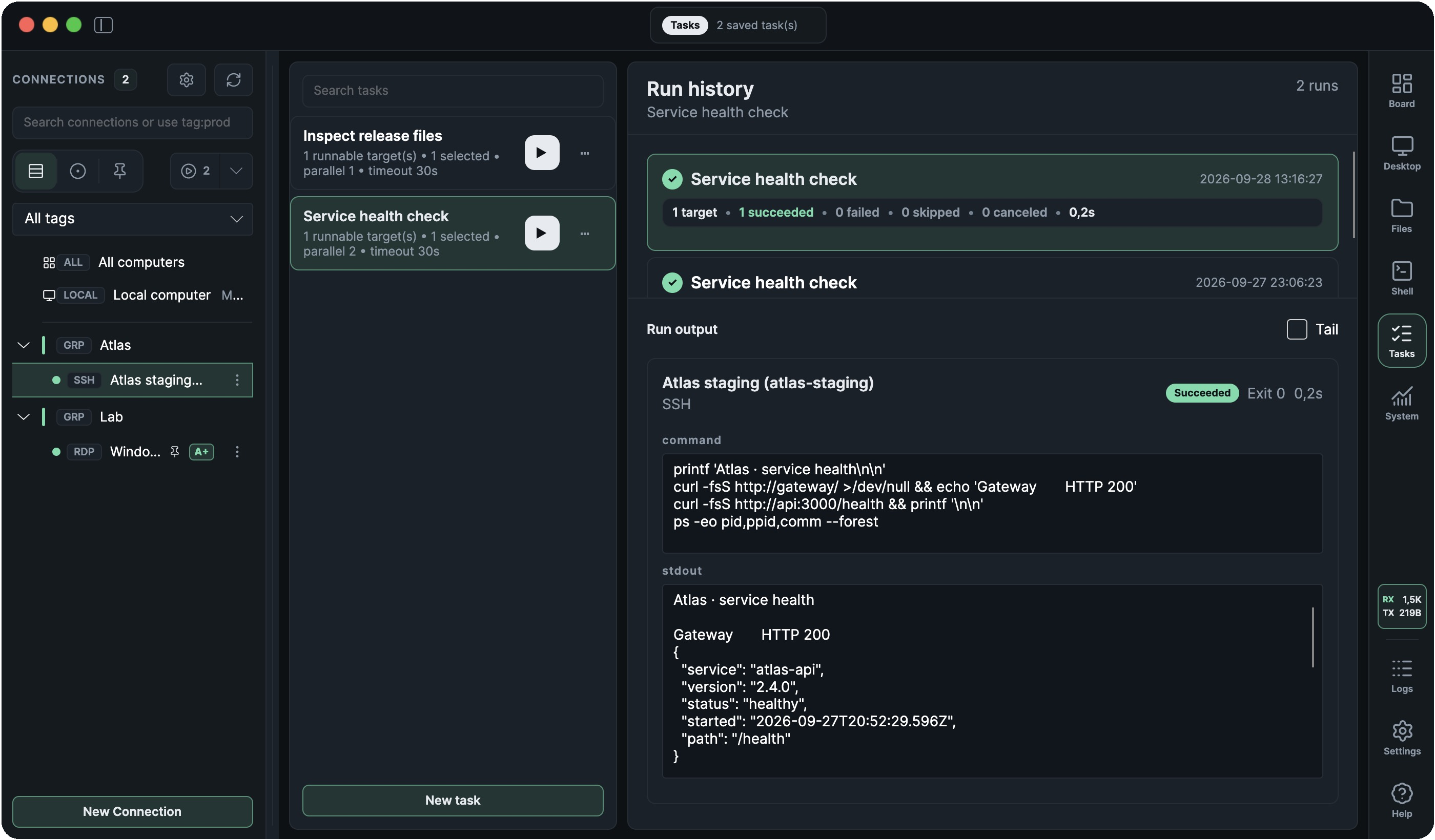
See what happened on each computer
See which computers completed the task and which need attention, with command output and errors saved for each one. Revisit previous runs in the history and choose whether Ramux notifies you when a task finishes.
Run a task from any application
Assign a keyboard shortcut to start a task while working in another app. Tasks run in the background unless they need input, in which case Ramux asks for the values before starting.
Available on macOS and Windows while Ramux is running.
Commands and run settings
One task for SSH and Windows
Keep the SSH and Windows versions of a command in the same task. Ramux uses the appropriate version for each computer, so you can check services or collect diagnostics across different systems.
Running tasks over RDP requires an active connection and the Ramux agent.
Shells and permissions
Windows commands can use Windows PowerShell, PowerShell 7 (pwsh) or Command Prompt (cmd). Task inputs work with SSH and PowerShell commands; cmd does not support them.
The RDP agent must run in the connected Windows user’s session. To run a task as administrator, start the agent as administrator first.
Control how tasks run across computers
Choose how many computers run the task at once and how long each command can take. If a command fails, decide whether to continue on the remaining computers or stop starting new commands.