
File manager
A Commander-style file manager for local and remote work. Jump between computers with global favorites, transfer and synchronize files, and manage Git repositories from the same workspace.
Browse and navigate
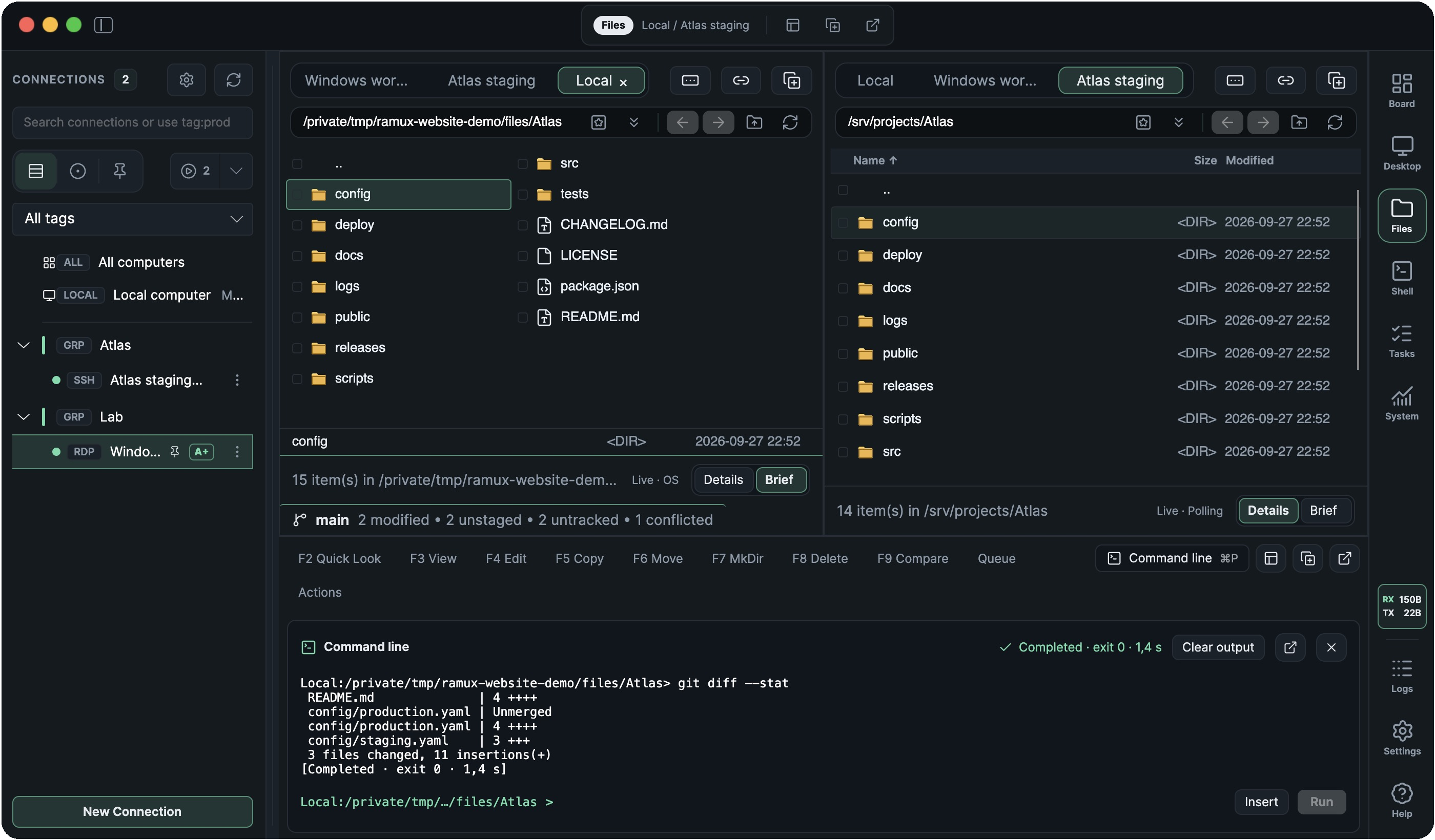
A Commander-style file manager
Navigate, mark and manage files from the keyboard, with two independent panes and a command line tied to the current folder. Use the same workflow for local folders, SFTP servers, SMB shares and files accessed through the RDP agent.
Keep folders open in tabs, or duplicate and detach the workspace into separate windows. Ramux can restore your tabs and paths when it starts; lock a tab to keep its folder in place.
Navigation, selection and file actions
Each pane keeps its own history, filter and view. Choose Details or Brief listings, mark files by name patterns, or invert the marked selection. Locked tabs cannot change folders or be closed until unlocked.
Use the searchable action palette to find operations for the current folder and selection, discover their shortcuts and see why an action is unavailable. It also works in detached windows.
Restored remote tabs load when their connection and any required agent are ready. You can hide disconnected locations from the tab list.
Jump to favorite folders across connections
Save frequently used folders as global favorites and open them from any connection. Ramux switches the chosen pane to the saved computer and folder, so you can jump straight from a local project to server logs or another remote location.
Assign a letter or number to a favorite. Press Alt+F1 for the left pane or Alt+F2 for the right, then press its assigned key. Global favorites keep the same shortcut across connections.
Choose which favorites are global in Manage favorites. You can also keep favorites specific to a connection.
Transfers and synchronization
Transfer files between computers
Copy or move files between local folders, SFTP servers, SMB shares and Windows computers through the RDP agent. Compress a selection as part of a transfer and have Ramux automatically unpack it at the destination.
Queue transfers, pause or reorder them, and set a speed limit. When a destination file already exists, choose whether to replace, skip, rename or resume it, and reuse that choice for the rest of the batch.
Drag and drop, clipboard and RDP access
Drag files between panes or drop local files into a remote folder. Clipboard actions copy or cut files, or copy their paths, where supported by the location and platform. On macOS, dragging remote or archived files to Finder downloads or extracts them after the drop is accepted.
RDP connections can use SMB or agent access. Ramux can select the available method automatically.
Browse archives like folders
Open archives in a file pane and extract just the files you need. Create ZIP, 7z or TAR.GZ archives from a selection, with optional password protection for ZIP and 7z.
Enter archive passwords directly or load them from 1Password. Ramux can remember your 1Password references for reuse without saving the passwords themselves.
Archive encryption
Password-protected ZIP archives use AES-256 encryption. Saved 1Password references are resolved again when used, so they retrieve the current password.
Review changes before syncing folders
Preview one-way or two-way synchronization, including subfolders. Compare file contents with SHA-256, apply exclusion rules and choose the direction for individual files before copying.
Save both locations and your comparison settings as a profile. Synchronization history identifies files changed on both sides since the last sync, so you can choose which version to keep.
Synchronization copies new and changed files; it does not propagate deletions.

Editing and search
Edit local and remote files
Use the built-in text and hex editors, or open a remote file in your preferred local editor and save changes back to the server.
The text editor includes syntax highlighting and search and replacement with regular expressions. Both built-in editors check for conflicting changes before saving to the original location.
Compare text and merge changes
Compare two local or remote files side by side and choose which changes to keep. Merge individual changes in either direction or edit the result directly, with undo and redo.
Comparison limits and saving
Text comparison supports files up to 2 MiB. Ramux checks both files again before saving; if another process changed one, you can reload it or explicitly overwrite it.
Find files across folders
Search by filename or contents, and narrow the results by file type, size or date. Use flat view to collect files from subfolders into one list for sorting and batch operations.
Filters and search limits
Content searches support files up to 16 MB. Refresh search results and flat view after files change; very large result lists may be shortened.
For a single folder, filter names with * and ?. The same patterns can mark or unmark files without changing the filter.
Rename many files with a preview
Build filenames from templates, replace text with regular expressions, add dates or number a series of files. Preview the new names and save complete rules as presets for future batches.
Ramux checks for duplicate names, existing destinations and invalid characters before applying the changes.
Templates & matching rules
Templates can combine the original name, extension, modification date and time, owner, group and a counter. Number files with a chosen starting value, increment and digit width. With a three-digit counter, [N]-[C][X] can turn report.pdf into report-001.pdf.
Use plain-text or regular-expression replacement, restrict a rule to masks such as *.jpg;*.png, enable case-sensitive matching, or convert names to lowercase, uppercase or title case.
Manage local and remote Git repositories
Review changes, choose what to commit, and pull or push updates directly from the file manager. Browse commit history, manage branches and worktrees, and resolve conflicts in a visual merge editor.
Work with repositories locally, over SSH or through the RDP agent. Open changes, history and branches in separate windows while keeping your file panes available.
- Stage whole files or individual hunks, amend commits and sign them with Git.
- Follow commit history as a graph and check out branches in linked worktrees.
- Resolve three-way merge conflicts and continue interrupted merges or rebases.

Staging, commits, and remotes
Stage and unstage whole files or individual hunks. Create or amend commits with optional sign-off, Git signing, and push after success. Fetch can prune deleted remote branches and include tags; pull supports fast-forward-only, rebase, and merge.
The repository row shows the current branch, staged and unstaged changes, and upstream status. Plain SMB access supports file comparisons but cannot run Git commands.
Pull and branch switching require a clean working tree. Force push uses force-with-lease against a verified remote tip and requires confirmation.
Branches, history, and worktrees
Create local branches or track remote branches. Browse history as a list or graph with branch and tag labels. Filter to the current branch, all branches or a chosen branch without checking it out. Compare a commit with its parent, choose the parent of a merge commit, or follow first-parent history. Reset supports soft, mixed, hard, merge, and keep modes.
Create linked worktrees from an existing revision, a new branch, or a detached commit. Worktree removal checks for uncommitted changes; pruning removes stale Git records without deleting worktree directories.
Merge conflicts and interrupted operations
Three-way merging automatically combines non-overlapping changes. Remaining conflicts can take Base, Ours, Theirs, both sides, or manual edits. Text merging supports UTF-8 files up to 2 MiB. Binary and non-UTF-8 regular files can preserve either version byte-for-byte or be resolved as deleted.
Interrupted merges, rebases, cherry-picks, reverts, and other supported Git operations can be continued, skipped, or aborted as appropriate. Ramux rechecks repository state before applying changes and reloads if another process has modified it.
More file tools
Inspect files and verify signatures
Preview images, read text or hexadecimal data, and inspect certificate issuers, validity dates and fingerprints. Calculate SHA-256, SHA-512 or MD5 checksums, or verify detached OpenPGP signatures.
Text and certificate previews
The viewer reads text in pages, switches between text and hexadecimal views, and lets you choose the character encoding.
Certificate inspection supports X.509 certificates and password-protected PKCS#12 bundles up to 512 KiB, including algorithms and extensions. It does not load private keys or check trust chains and revocation.
OpenPGP verification
Verify detached .sig and .asc signatures using your local GnuPG installation and keyring. Remote files are downloaded temporarily for verification. The signing key must already be available; unknown keys are not fetched automatically.
Manage permissions, attributes and links
Change timestamps and file attributes, or edit Unix permissions for a selection of files and folders. Apply permissions recursively, inspect owners and groups, and create file links where the location supports them.
File properties and deletion
Edit creation and modification times, Read-only, Hidden and Archive attributes, or Unix permissions using checkboxes or octal notation such as 0644. Available properties depend on the location. Recursive permission changes do not follow symbolic links.
Move files to Trash where available, or delete them permanently.
Run commands where you’re working
Run commands in the local or remote folder you’re browsing, with filename completion and selected files inserted as arguments. Follow the output in place, or detach a running command into its own window and start another without interrupting it.
Use Shell for interactive programs or a persistent shell session in the same folder.
Command behavior & limits
Commands run locally, over SSH or through the RDP agent, with pipes and redirection supported by the target shell. A standalone cd or chdir changes the folder shown in Files; home-directory expressions such as ~ are supported.
Selected paths are inserted as quoted arguments. Runnable scripts and executable Unix files receive the ./ prefix. Command history retains the last 100 distinct commands for the current command runner.
Each command runs separately, so shell variables and functions do not carry over to the next command. Commands have no automatic timeout and can be stopped explicitly; their exit code and duration remain available after completion. The command line is unavailable inside archives.
Add WebDAV and specialized file panels
Use the WebDAV plugin to browse, transfer and edit files on HTTP or HTTPS servers. The same file manager provides text, hex and diff editing, with checks for server changes where supported.
File-manager plugins can also add tabs to either pane. The included Hosts plugin lets you browse, search and edit hosts-file entries with the familiar file controls, subject to your permissions.
Plugin and WebDAV requirements
Plugins are C# source packages loaded locally with Ramux’s permissions. WebDAV supports anonymous or Basic authentication through the existing credential stores. Guarded editing requires strong ETags and server support for HTTP preconditions.
Available operations depend on the WebDAV server. The plugin does not support resumable uploads, Unix permissions, links, shells or system management.