
Ramux

Remote desktop.File manager.

Ramux combines remote desktops and a full two-pane file manager with the tools to manage the whole computer: processes, network connections, services, containers and shells. For local machines and remote systems.

macOS · Windows · Linux
Ramux File manager with a local Brief list, remote SFTP details and an open command line A live Windows desktop in Ramux Picture in Picture
File manager + Remote desktop

Remote desktop

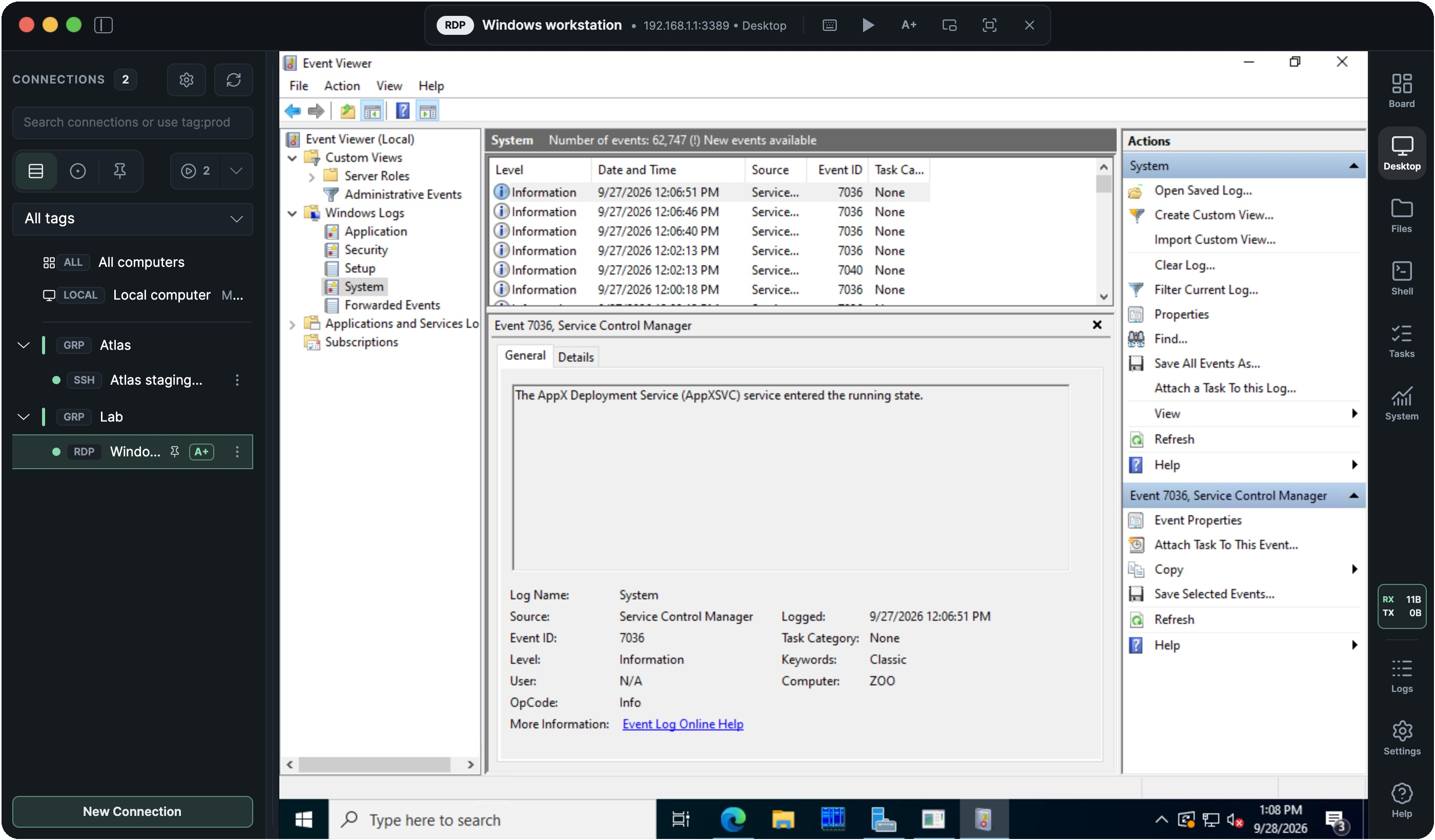
Work with remote Windows desktops in Ramux, with automatic resolution, HiDPI scaling and multiple monitors. Switch between desktops while your other sessions stay connected.

Remote desktop capabilities
Windows desktop in Ramux showing Event Viewer on the Zoo test machine
Remote desktop · Windows Event Viewer
Immersive mode on macOS
Work full screen with Ramux’s controls hidden, and use familiar keyboard shortcuts to switch between remote apps as if you were sitting at that computer.
Keep a desktop in view
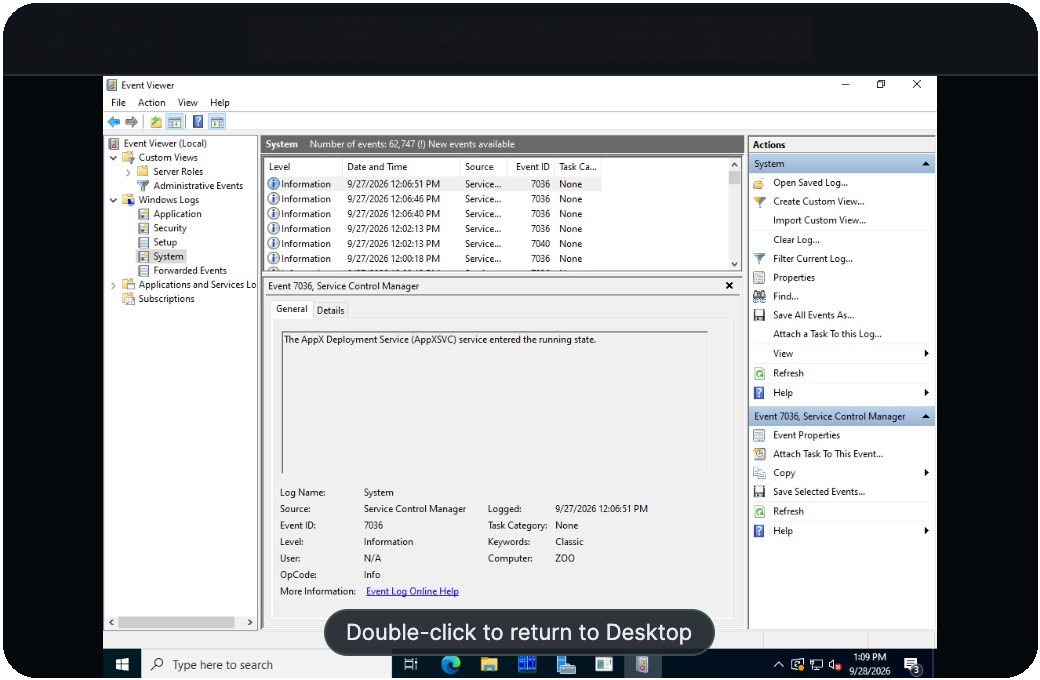
Pin a session in a resizable, always-on-top Picture in Picture window while working elsewhere.
Share files, clipboard and audio
Open your local folders from the remote desktop and copy and paste text between computers. On macOS and Windows, you can also hear sound from remote applications.

Manage files, run commands and monitor Windows

Edit files, run commands and saved tasks, and manage processes and services on your remote Windows computer directly in Ramux. The Ramux agent runs on that computer and uses your existing RDP connection.

How the RDP agent works

File manager

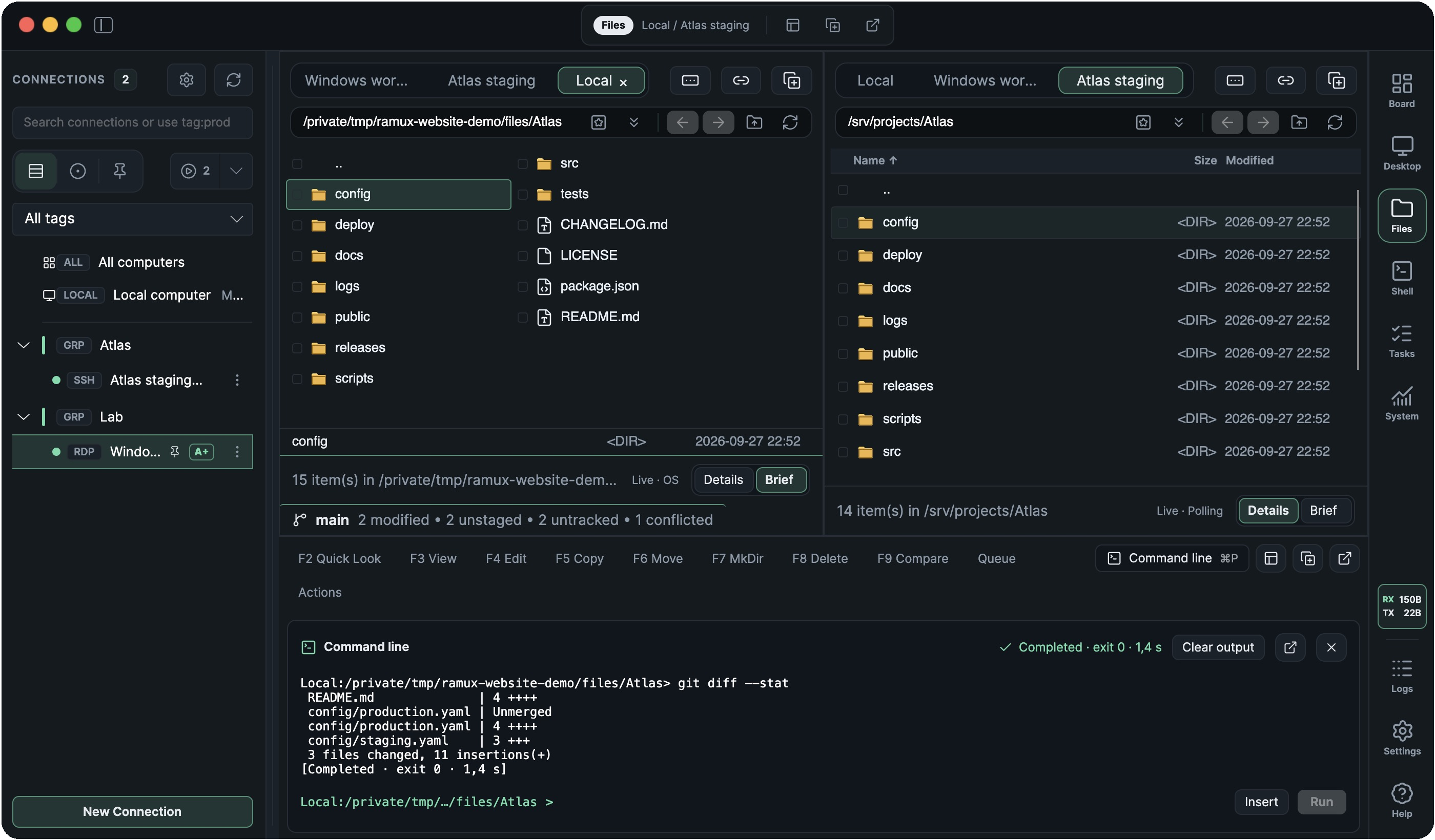
Browse local and remote folders side by side. Keep several folders open in tabs, or use separate file-manager windows for different projects. Access remote files over SFTP, SMB or through the RDP agent.

File manager capabilities
Local Atlas project in Brief view beside SFTP details, with Git status and command-line output
File manager · Brief, Details and command line
Transfer files and work with archives
Copy and move files between local folders, remote computers and network shares. Compress files before transfer and automatically unpack them at the destination. Browse archives like folders and extract just the files you need.
Compare and synchronize folders
See which files differ between two folders and review the changes before syncing in one direction or both. Compare file contents, leave out files you don’t need, and choose which version to keep when both copies have changed. Save your settings to repeat the same sync later.
Edit, search and inspect files
Use the built-in text and hex editors, or edit remote files in your preferred local editor and save changes back. Search file contents, preview batch renames, and compare text side by side to merge selected changes. View images, inspect certificates and calculate checksums.

Manage local and remote Git repositories

Review changes, choose what to commit, and pull or push updates directly from the file manager. Browse commit history, manage branches and worktrees, and resolve conflicts in a visual merge editor.

Explore Git

System management

Inspect resource use and control what is running on local and remote computers. Process and network views are linked, so you can trace a connection to its program or inspect all connections opened by a process.

System management capabilities
Process lists and trees
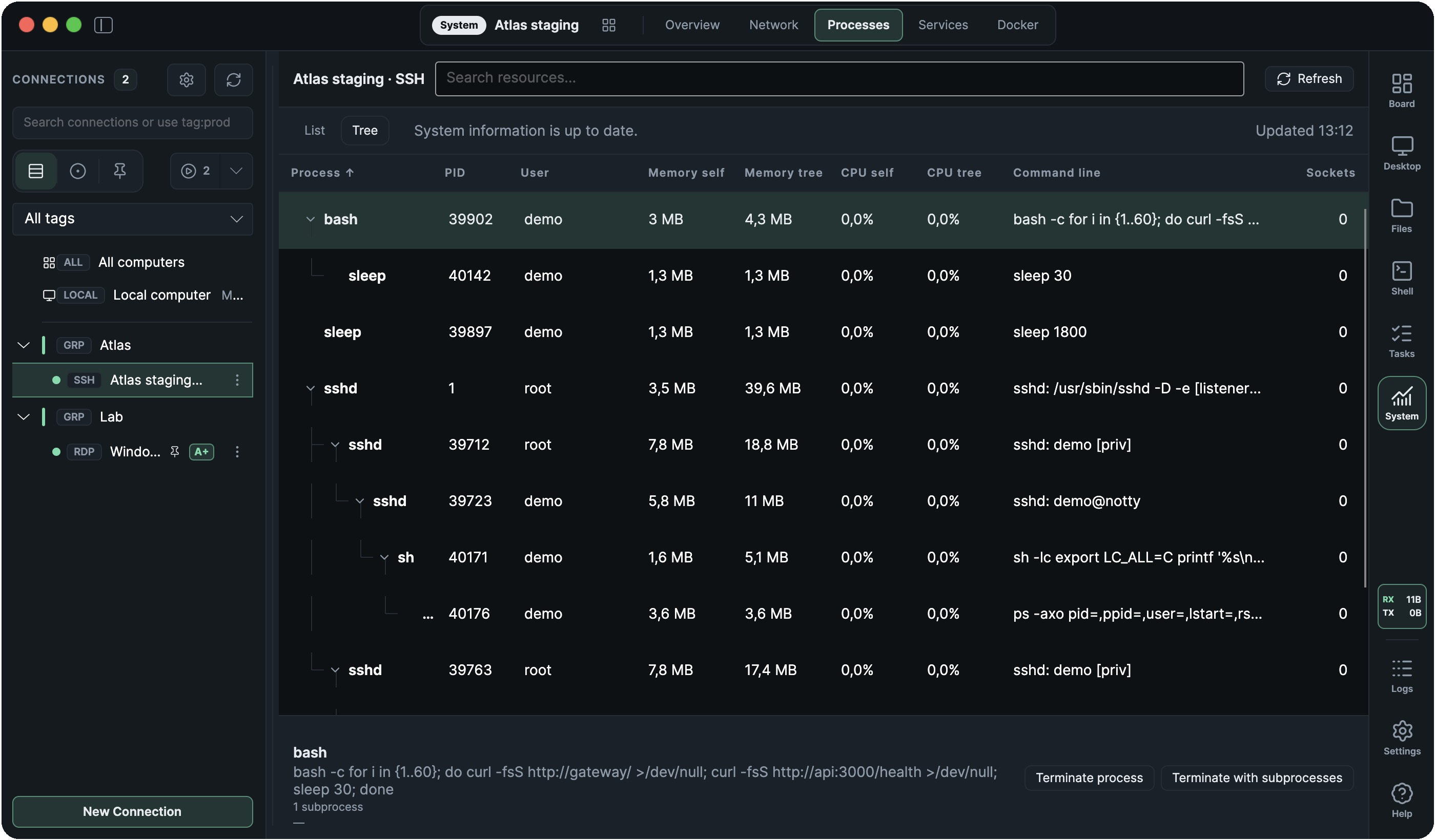
Inspect parent and child processes, command lines, users and related services. Compare CPU and memory for one process or its whole subtree. Terminate a process on its own or with its subprocesses.
Network connection monitoring
Inspect TCP connections and listeners, include UDP endpoints, and filter by address, port or program. View the program behind a connection, or stop it to close all of its connections.
Expanded SSH process tree with parent and child processes, CPU and memory usage
System · Process tree and resource usage
Resources and system services
Track CPU, memory and disk use across computers over time. Set your own limits and get notified when CPU or memory use is high, or disk space is low. Start, stop or restart Windows Services, systemd and launchd services, and change automatic startup where supported.
Docker containers and Compose projects
Create and manage containers, images, volumes and networks. Inspect configuration and resource use, follow logs, open a container shell or deploy a Compose project.

Use these tools on your own computer or on remote machines over SSH or through the RDP agent. Available actions depend on the operating system and your account’s permissions.

Shell & tasks

Use interactive shells for work on a single computer, or save parameterized commands to run across a set of machines. Both sit alongside the desktop and file manager.

Independent SSH shell window showing project files and a live API health check
Shell · Independent windows

Interactive shells

Local shells on macOS, SSH terminals, and PowerShell or cmd through the RDP agent.

  • Detach running sessions into independent windows.
  • Open shells in the current file-manager directory.
  • Upload local files by dragging or pasting them into an SSH terminal.
  • Copy remote files from an SSH shell to your clipboard and paste them into local applications.
Explore Shell
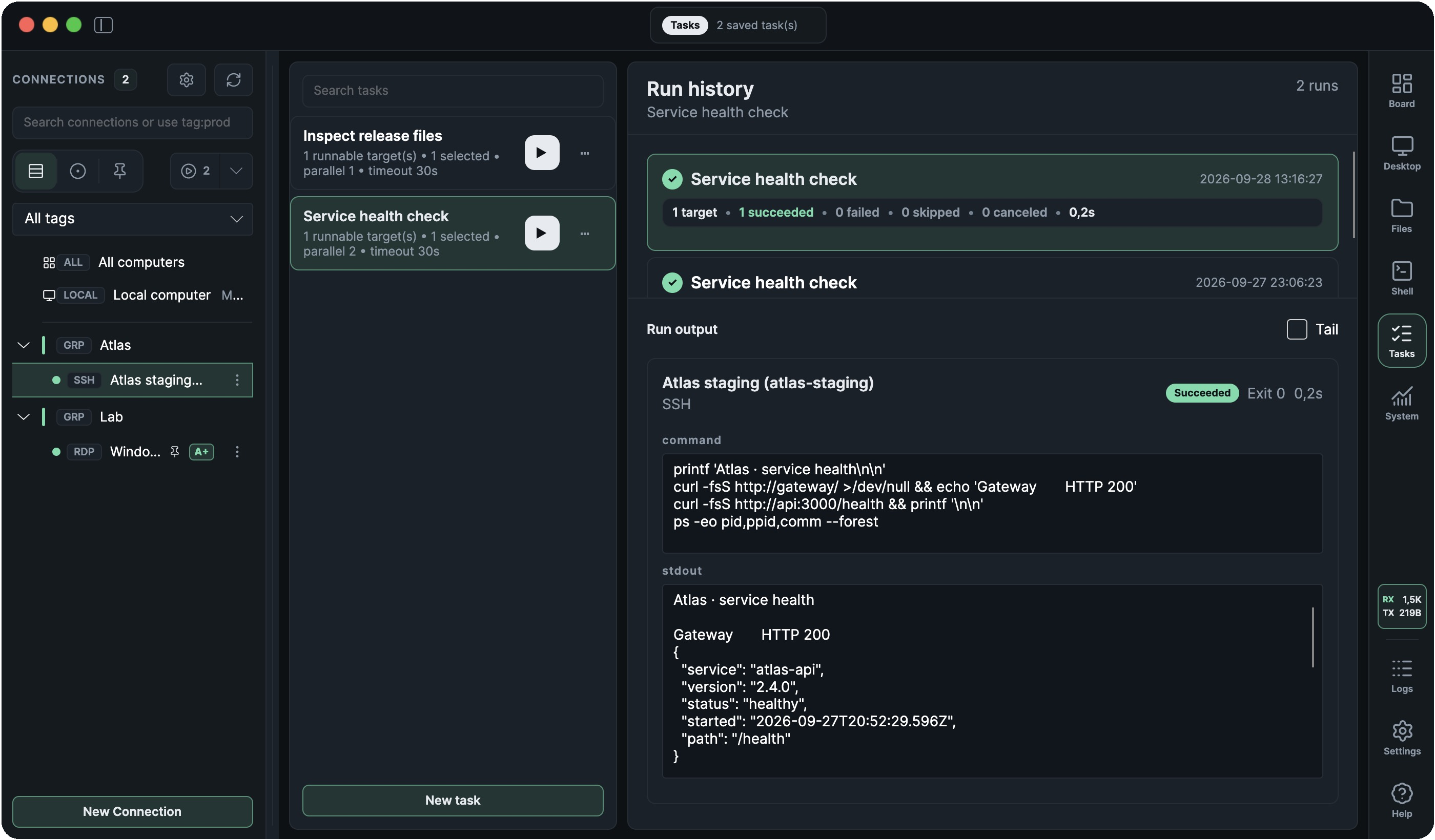
Successful service health task with per-target output, exit code and duration
Tasks · Run history

Run routine tasks across computers

Save commands for recurring work, such as checking services or collecting diagnostics. Run them on one computer or several at once, chosen individually or by tag.

  • Add inputs to a task, and Ramux asks for their values when you run it.
  • See which computers succeeded or failed, with output saved in run history.
  • Start tasks with a keyboard shortcut on macOS and Windows.
Explore Tasks

Download Ramux

Version 0.2.9

Technical notes

Platforms & requirements

Ramux targets macOS, Windows and Linux. Choose an available package for your operating system and processor in the downloads above.

Available features depend on the operating system and connection type. Integrated local shells currently require macOS. RDP file, shell and system tools require the Ramux agent in an active Windows session.

Connections & credentials

Organize computers into groups, find them by name or tag, and open several connections at once.

Connect with SSH keys or your SSH agent, use credentials from 1Password or HashiCorp Vault, or save passwords in macOS Keychain.

Explore Connections