
Remote desktop
Connect to Windows computers over RDP and work with several desktops in one place. Share folders and clipboard text, or keep a remote desktop visible while working in another app.
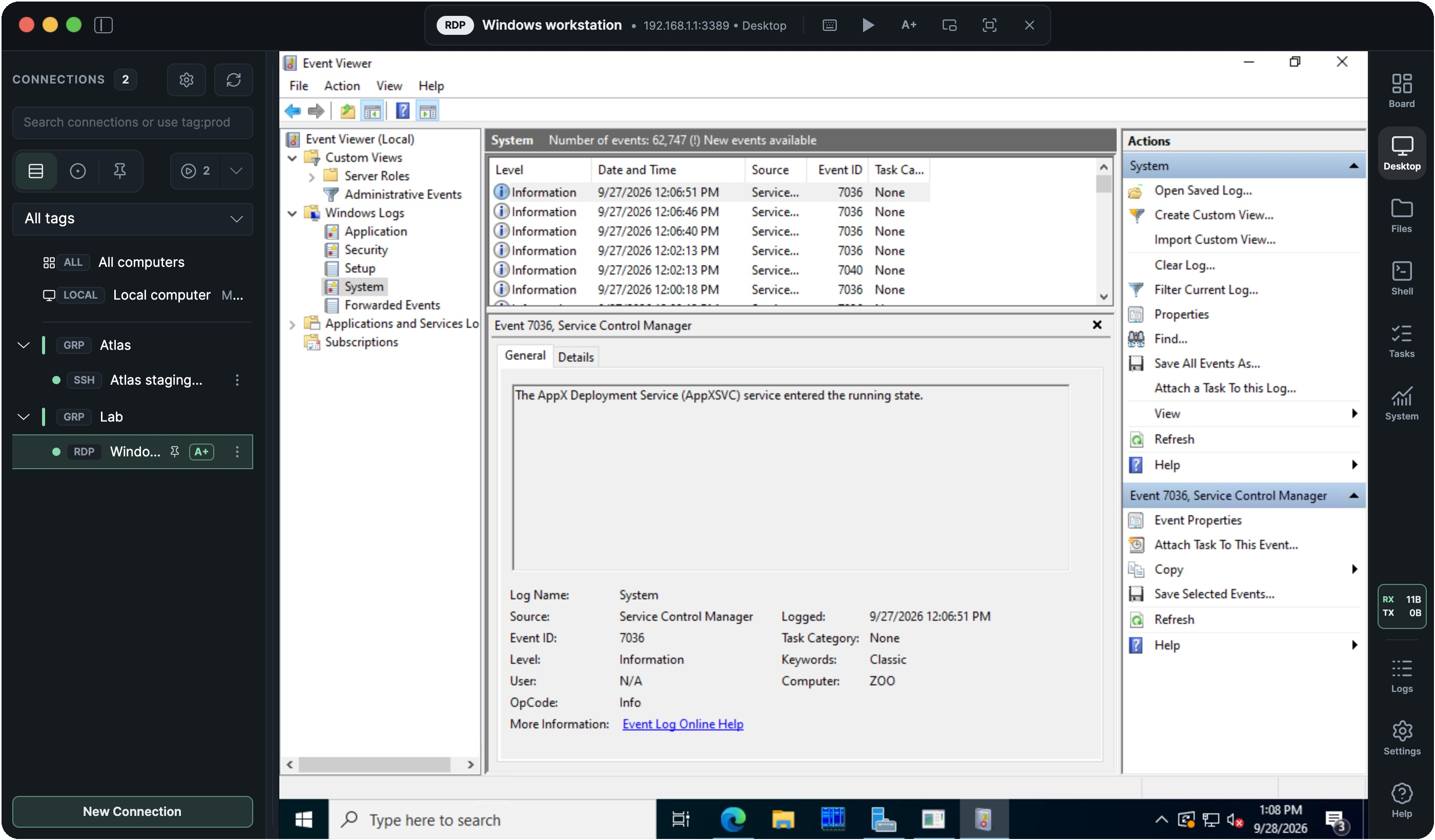
Desktop
Work on one screen or several
The remote desktop adjusts to your window size, with HiDPI scaling and support for multiple monitors. Ramux remembers your display settings for each connection.
Share files, clipboard and audio
Open selected local folders from the remote desktop and copy and paste text between computers. Choose what to share for each connection.
On macOS, you can also copy files from the remote desktop and paste them into local apps. Sound from remote applications plays on macOS and Windows.
Use familiar Mac shortcuts
Use familiar Mac shortcuts to copy, paste, save and switch between remote Windows apps. Turn shortcut mapping on or off for each connection.
Keyboard details
With mapping enabled, shortcuts using the left Command key become their Windows equivalents: Command+C, Command+V and Command+S send Ctrl+C, Ctrl+V and Ctrl+S. In immersive mode, Command+Tab sends Alt+Tab to switch between remote apps.
The right Command key stays available as the Windows key. Turn mapping off to use either Command key as the Windows key.
Window modes
Immersive mode on macOS
Work full screen with Ramux’s controls, the Dock and menu bar hidden, so you can focus on the remote computer.
macOS normally uses Command+Tab to switch between Mac apps. In immersive mode, you can use that same shortcut to switch between apps on the remote Windows computer. Enable Mac shortcut mapping, and Ramux sends it as Alt+Tab.
You can set a connection to start in immersive mode. Leaving the mode keeps your remote session connected.
Keep a desktop in view
Keep a remote desktop visible in a resizable, always-on-top Picture in Picture window. Follow an installation, a running task or a dashboard while working in another app.
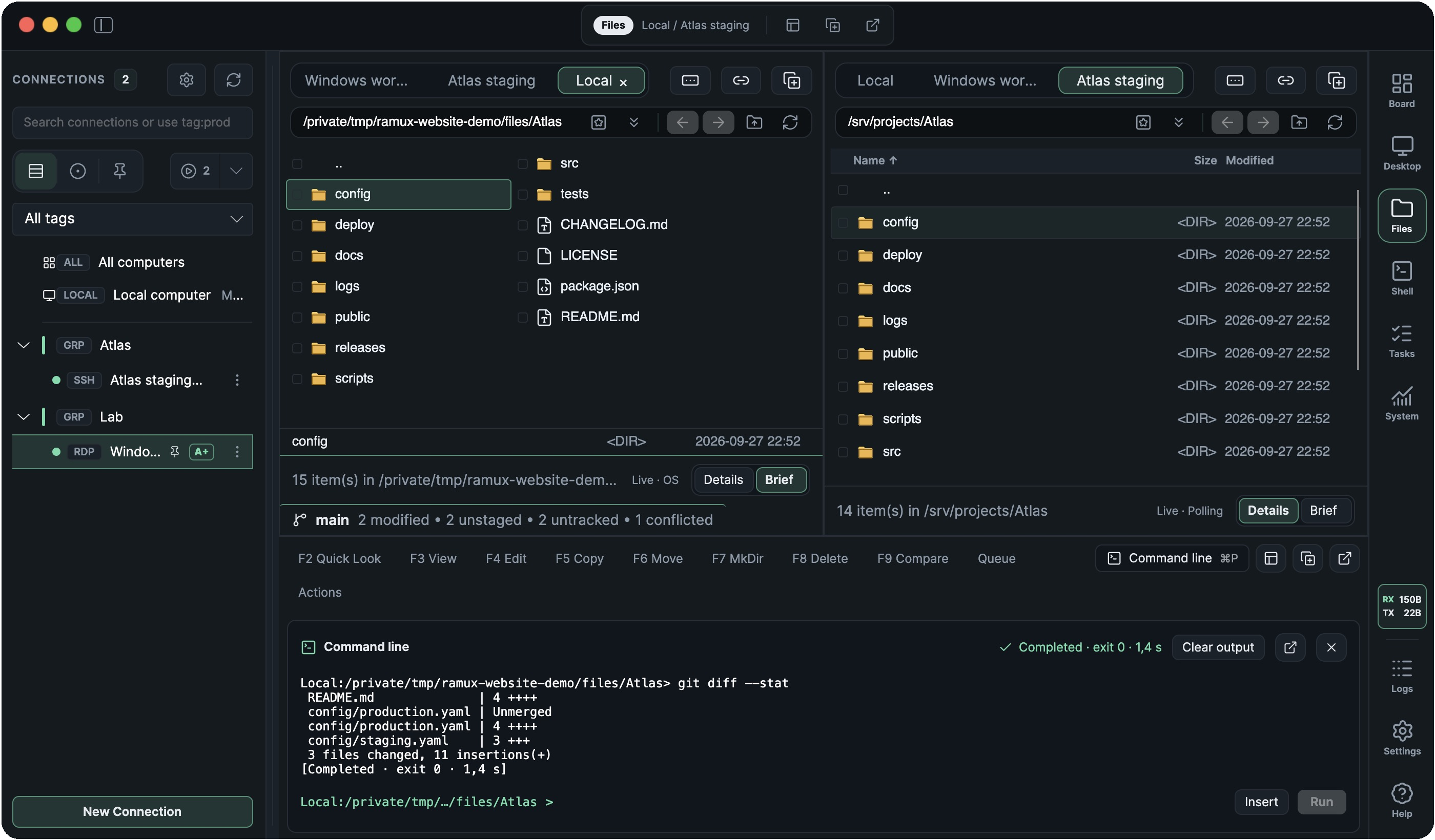
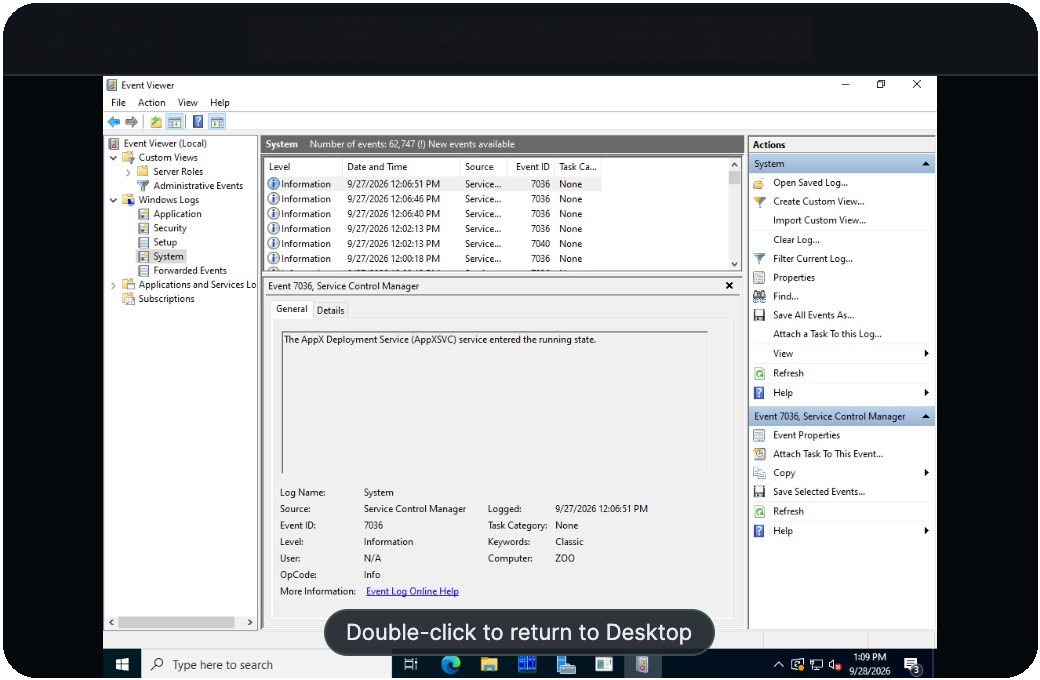
Using Picture in Picture
The preview is view-only. Double-click it to return to that desktop in the main window. Resizing the preview leaves the remote desktop’s resolution unchanged, and switching to another session keeps the pinned desktop in view.
Closing the preview keeps the session connected. Locking Ramux or disconnecting that session also closes its preview.
How the RDP agent works
Edit files, run commands and saved tasks, and manage processes and services on your remote Windows computer directly in Ramux. The Ramux agent runs on that computer and uses your existing RDP connection.
The remote desktop itself works without the agent.
Setup and permissions
Ramux can start the agent automatically when file sharing is enabled. You can also start it manually on the remote computer.
The agent runs in your connected Windows user session with the same permissions. To perform actions that need administrator permissions, start the agent as an administrator.